



Agents already rely on Canva for their day-to-day marketing. It’s the go-to design platform for real estate—and with more than 260 million monthly active users worldwide, it’s the environment agents already know and trust. Instead of trying to mimic Canva or build a separate marketing center, Cloze integrates directly with Canva Enterprise so your agents can keep using the platform they’re comfortable with while your marketing team gets brand consistency and control.
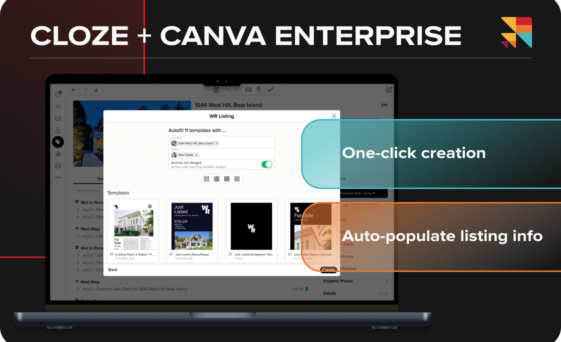
With the Cloze + Canva Enterprise integration, they can send any listing from Cloze to Canva and instantly generate branded flyers, postcards, and social posts prefilled with photos and details. No dragging, no retyping. Cloze pairs your listing data with Canva, so your approved templates populate automatically and stay on brand.
While Cloze has had a Canva integration since 2023, the new Enterprise integration offers marketing teams stronger brand control and eliminates the need for agents to drag and drop or copy and paste other listing details. Cloze + Canva Enterprise pushes all relevant details automatically into your Canva design without agent intervention and ensuring all designs stay on brand.
Brokerage benefits
With the Cloze + Canva Enterprise integration, marketing teams ensure that agents can easily produce on-brand marketing materials and social media graphics in seconds, enabling:
- Consistent branding – Agents only see approved, autofill-ready Brand Templates.
- Speed at scale – Data flows from Cloze into Canva; agents make light edits and publish.
- High adoption – The workflow lives inside Canva, which agents already know.
How it works
Each design element in a Canva brand template can be connected—or “mapped”—to a matching data field in Cloze. When an agent sends a listing to Canva through the Cloze + Canva integration, Cloze automatically pulls the relevant property details into each mapped element, updating the design in seconds.
For example, a listing template can dynamically fill in details such as:
- Property address – automatically inserted into headline or title text fields.
- Listing price – pulled from Cloze and displayed in the designated price element.
- Description and key features – synced directly from the property record to the body text or highlights section.
- Property photos – auto-populated into the image placeholders or galleries.
- Agent details – name, headshot, contact info, and branding elements filled in from the agent’s Cloze profile.
Auto-populate Canva designs through Cloze
- Start in Cloze – Select any listing and tap More Options > Send to Canva Enterprise. Cloze shows only your autofill-enabled Brand Templates, approved by the brokerage marketing team.
- Pick a template or Template Pack – Generate a single design or a pack (e.g., flyers, postcards, social) that generates a full set at once. Template Packs are a Cloze convenience that groups related Canva Brand Templates for bulk creation.
- Cloze fills the details – Listing photos, price, address, and agent info are sent to Canva and auto-inserted into marketing-approved templates.
- Optionally customize in Canva – You’re taken straight into Canva to review and adjust layouts, swap photos, or edit text. Use the companion, Cloze App for Canva, to drag and drop other images and make refinements.
- Share or send – Print or post from Canva or email the finished designs directly through Cloze.
Create Canva materials with a voice command
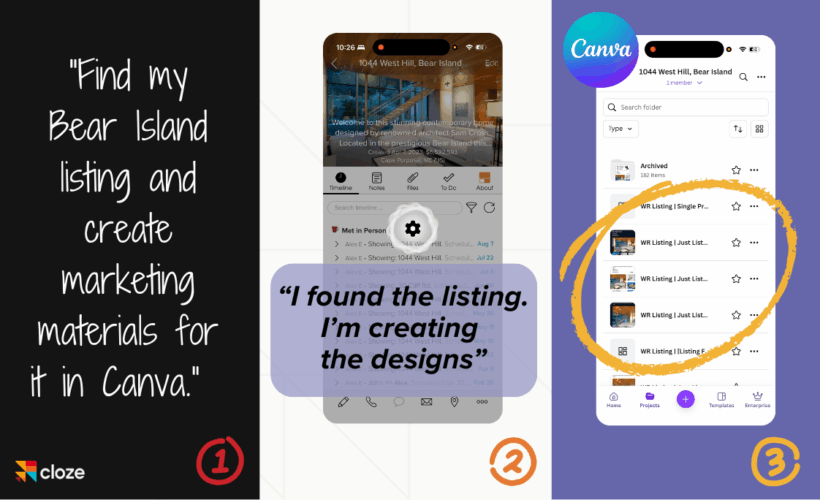
You can even use our AI virtual assistant, Maia, to create a Canva design simply by asking:
- “Find my 1044 West Hill property and create listing materials for it in Canva”— Maia suggests templates or template packs and then creates the materials in Canva automatically.
Get started with Cloze + Canva Enterprise
Before you connect your Canva Enterprise account to your Cloze account, we recommend signing in to both Canva and Cloze in your web browser.
For brokerage marketing teams
Brokerage marketing teams use the Data Autofill app to create and publish autofill-ready Brand Templates that Cloze can access. Templates can be accessed individually, and can also be grouped together in template packs, enabling agents to create multiple related designs with a single request.
Here are a few articles to help you get started:
- How to add Cloze data fields to Canva elements
- Canva Enterprise Design Tips
- How to create a Canva template pack to create several designs in one step
For agents
Once autofill-ready templates are created, agents can easily access the new templates, and send Cloze details through to auto-populate and create on-brand marketing materials in seconds.